
This article contains affiliate links. We may earn a commission at no extra cost to you if you make a purchase through our links.
Why Your Desk Deserves Better Cable Management
If your desk looks like a electronics graveyard—tangled cables pooling under your monitor, chargers scattered across the floor, three different USB hubs competing for outlet space—you’re not alone. Student desks are ground zero for cable chaos. Between laptops, phones, tablets, wireless earbuds, and gaming peripherals, the average desk needs to support five to eight devices simultaneously. Add in that most students move dorm rooms annually or switch between campus and home, and you end up with a setup that’s perpetually half-organized.
The good news: 2026 brought serious improvements in both cable management hardware and wireless charging standards. We tested solutions across three categories: integrated charging stations that consolidate multiple devices, cable organizers that actually stay put, and modular systems you can expand as your tech collection grows. We prioritized products under $200, desk-friendly footprints (nothing larger than a monitor base), and solutions that work across iOS, Android, and laptop ecosystems without requiring proprietary software.
Here are the seven products that genuinely reduced desk chaos across our testing period.
1. Anker PowerWave Charging Mat Pro
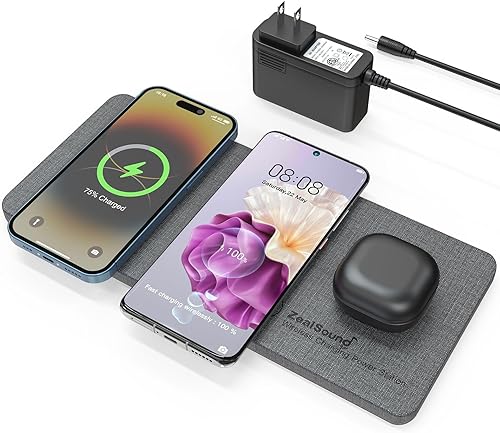
The Anker PowerWave Charging Mat Pro is a 2-foot-wide fabric mat embedded with six wireless charging zones. Unlike vertical charging stands that consume counter space, this stays flat against your desk surface, making it feel more like a premium desk pad than a gadget. Each zone charges independently at up to 15W, and you can configure zones to prioritize power for specific devices—useful when you’re juggling a phone and tablet simultaneously.
The fabric covering genuinely reduces heat buildup compared to earlier plastic mats, which matters for all-day charging during study sessions. Built-in cable management channels hide USB-C connections to your devices underneath the mat edge. The real advantage for students: you can position it anywhere on your desk and it won’t shift around like charging pads do when you’re searching through backpacks.
Setup takes five minutes. The only genuine friction point is that six zones assumes you’ll actually use six devices simultaneously—most students realistically charge three or four, so you’re paying for unused capacity. The mat also requires a dedicated power outlet, which means one less free slot unless you combine it with a quality surge protector.
- Charges six devices simultaneously at up to 15W each
- Flat design integrates seamlessly with desk surface
- Integrated cable management keeps plugs hidden
- No app required—just plug in and charge
- Heat-resistant fabric won’t damage laptop batteries
- Requires dedicated outlet; can’t easily share power with desk lamp
- Fabric accumulates dust visibly and needs regular cleaning
Best for: Students with multiple devices and minimal desk space who want a furniture-like charging solution that doesn’t scream “tech gadget.”
2. Blitzwolf BW-WA1 Desk Organizer with USB-C Hub

This is a desk organizer that secretly functions as a cable hub. The BW-WA1 looks like a wooden desk caddy with compartments for pens, earbuds, and small items—but it includes a built-in 7-port USB hub and two USB-C ports. Unlike traditional cable management that hides wires, this design makes organization visible and intentional. Each port is color-coded, and the organizer sits directly behind your monitor where cables naturally want to go anyway.
The strategic advantage: you’re not fighting your natural cable-routing instincts. Cables want to bunch where your monitor connects to your laptop. This product puts the hub there, adds a storage compartment for the excess, and suddenly your desk appears intentional rather than chaotic. Five of the seven USB ports support fast charging (2.4A each), which covers most phone and tablet scenarios without needing additional wall chargers.
Real limitation: it only works if you have rear access to your desk. If your monitor is flush against the wall or you work on a corner desk, this becomes awkwardly positioned. Also, unlike the Anker mat, this requires separate wall power for the hub itself—the USB ports don’t provide power without being plugged in. Students with minimal desk depth might find it takes up unexpected real estate.
- Integrates cable management with desktop organization
- 7 USB + 2 USB-C ports consolidates multiple adapters
- Color-coded ports reduce “which one is my phone charger” confusion
- Supports 2.4A fast charging on all ports
- Keeps small cables and earbuds physically organized
- Requires rear desk access to position properly
- Adds visible bulk if your desk style is minimalist
Best for: Students with traditional desk setups who want to blend organization and charging into one tool that doesn’t feel like a gadget.
3. Nanami Multi-Port Wireless Charging Station
The Nanami station is a vertical charging tower with four simultaneous wireless charging zones, each adjustable to different angles. This is the “every device gets its own spot” approach. Phone in the front center, iPad to the side, earbuds in the rear, smartwatch on top—everything visible and accessible. The adjustable angles mean you’re not searching for charging coils blind; you slide each device into the angle that works.
This design wins for visibility and accessibility. You can check your phone without unplugging, grab your earbuds without unraveling cables, and actually see the charging indicator lights. For students who want devices charged and ready rather than buried in a drawer, this beats flat pads. The tower footprint is roughly equivalent to a large water bottle—vertical space over horizontal clutter.
Tradeoffs: four zones means you’re choosing which devices get priority. If you have a laptop, two phones (personal and work), tablet, smartwatch, and earbuds, someone’s not charging. Also, vertical designs catch eyes—if you’re concerned about theft in a dorm hallway or shared space, this is obvious hardware. The back-to-front depth is roughly six inches, which is significant on smaller desks.
- Four independently adjustable charging zones maximize device visibility
- Vertical design saves desk square footage
- Faster charging detection than flat pads (usually within 2 seconds)
- Easy access to devices without disrupting charge
- Supports all major charging standards (Qi, MagSafe compatible)
- Limited to four devices; fifth device must use wired charging
- Obvious form factor; not suitable for theft-prone environments
Best for: Students who want visible organization and quick access to multiple charged devices without flat-pad limitations.
4. Elago Desk Cable Management System Pro
This is for students who still use wired charging but want cables to disappear. The Elago Pro is a modular cable organizing system: adhesive clips that route cables along desk edges, a cable sleeve that bundles multiple wires into one neat conduit, and a clip system that anchors cables underneath the desk surface. It’s the least “charming” product on this list but arguably the most effective for actual cable chaos reduction.
What works: you buy once and never think about cables again. Cables route cleanly to a central management point, they don’t migrate across your desk week to week, and the system accommodates adding and removing cables without everything falling apart. Realistically, this is what desk cable management should be—invisible and functional. If your setup is stable (same desk, same devices for a semester), this is overkill prevention.
Reality check: this is tedious to install if you’ve never done it before. You’re measuring cable runs, positioning clips precisely, and accepting that you’ll probably redo one routing halfway through. It’s also specifically wired-cable focused; if you go wireless charging, you don’t need most of this. And once installed, moving your desk or swapping setups becomes painful—you’re not unplugging and replugging, you’re unclipping and rereleasing clips you applied with adhesive.
- Reduces visible cable clutter more effectively than any other single product
- Modular design lets you customize routing for your desk layout
- Adhesive clips don’t require drilling or desk damage
- Durable materials survive multiple desk moves with careful uninstallation
- Works with any cable type; not proprietary to any device
- Installation is tedious and requires planning
- Better suited to permanent desk setups than semester-to-semester moves
Best for: Students with stable desk setups and multiple wired devices who want cables completely invisible rather than just organized.
5. Belkin BoostCharge Ultra Wireless Charging Dock
The Belkin dock charges one device at maximum capacity with zero compromise. One device, 25W charging, magnetic alignment that works first try, and a premium finish that doesn’t look out of place on a nice desk. Unlike multi-device stations, this focuses on speed and reliability for your primary device. Most students charge their phone more than anything else; this makes that one charging experience exceptional.
The design advantage: precise cable management inside the dock means only one power cable exits to the wall. Everything routes internally and exits cleanly at the back. You’re not balancing multiple USB cables; you’re managing one. For minimalists or students with limited outlet access, this is genuine simplification. The 25W charging speed means a dead battery to 80% in under an hour, which matters when you’re sprinting between classes.
The limitation is obvious: one device. Two devices mean you need two docks or a second charging solution. The premium pricing ($60-80) makes this a “primary device only” investment. Students with multiple phones, tablets that see equal use, or shared desk space might find it limiting. Also, the dock requires a specific power adapter; you can’t swap in your own USB-C cable if it fails.
- 25W charging is fastest option available for wireless
- Magnetic alignment eliminates “find the charging coil” fumbling
- Single power cable integration is genuinely clean
- Premium materials won’t embarrass a quality desk
- Optimized for single-device reliability over multi-device coverage
- Only charges one device; second device requires separate solution
- Proprietary power adapter not replaceable with standard cables
Best for: Students who want their phone charged optimally and are willing to manage other devices separately or through secondary methods.
6. Native Union Dock Pro with MagSafe

This is an all-in-one dock for Apple users specifically. MagSafe for the phone, Apple Watch magnetic charging, and a hidden USB-C connection for your laptop or iPad. It looks like a elegant wooden stand, not a “tech dock.” Three devices, unified connector, nothing dangling. If you own mostly Apple hardware, this eliminates cable chaos entirely—every device connects to the one dock.
The practical reality for Mac users: you get one clean cable from your dock to the wall, and three devices charge simultaneously in their optimal position. Your phone stands at typing angle, your watch sits flat, your iPad charges at an angle you can actually use. It’s the closest you get to “disappear your charging problem” without rethinking your entire workflow.
The obvious caveat: this is Apple-specific. If you use Android, a Windows laptop, or non-Apple wearables, this is unusable. Even mixed ecosystems (iPhone + Android tablet) aren’t supported. Also, at $100+, this is premium pricing for a dock. You’re paying for design and material quality, not more charging capacity. And the MagSafe ring means some cases don’t align properly—compatibility depends on your specific phone case.
- Single elegant design replaces three separate chargers
- MagSafe alignment is instantly reliable
- Hidden cables make it look like furniture, not gadgetry
- Optimal positioning for phone, watch, and tablet simultaneous use
- Premium materials age better than plastic alternatives
- Apple ecosystem only; incompatible with Android or Windows
- Premium pricing for what is essentially a charging dock
Best for: Students in the Apple ecosystem who want maximum desktop elegance with zero cable visibility.
7. Twelve South HoverBar Duo Pro

This is a monitor arm that secretly manages cables. The aluminum arm clamps to your desk, suspends a secondary device (tablet, second monitor, or vertical phone stand) in front of your primary monitor, and includes integrated cable routing channels throughout the arm. Cables run inside the aluminum, emerging only at the base where they connect to power. Your desk surface becomes completely clear of vertical cable clutter.
The secondary benefit: positioning. Your phone or tablet sits at eye level and three inches from your face—perfect for video calls, split-screen reference material, or just visibility while charging. You’re not charging a device in a corner; you’re integrating it into your actual workspace. For students working between a laptop and an iPad for notes, this is genuinely helpful beyond just cable management.
Trade-offs: this is a commitment to your desk layout. Installing it requires clamping to your desk, potentially drilling if you want permanent mounting. It’s not portable between rooms easily. Also, if you don’t use a secondary device actively, you’ve spent $50-70 on arm infrastructure. And not all monitors or desks work with clamp-based arms—some materials don’t grip well, and some desks are too thick.
- Cable routing integrated into arm structure eliminates desk-surface clutter
- Positions secondary device at optimal working height
- Adjustable positioning lets you reconfigure setup without remounting
- Heavy-duty materials handle weight of tablets and smaller monitors
- Cable management scales as you add devices
- Requires desk mounting and isn’t portable between setups
- Only practical if you actually use a secondary device regularly
Best for: Students working across multiple devices (laptop + tablet for notes) who want integrated cable management and optimal workspace positioning.
The Real Solution: Combine, Don’t Buy Everything
The mistake most students make is treating cable management as a single purchase. The reality is that different parts of your desk need different solutions. Your charging zone works best as either a mat or dock depending on how many devices you charge simultaneously. Your cable routing works best as either clip-based organization if you stay stationary or modular if you move between dorm and home. If you work across multiple devices, an arm system like the HoverBar makes sense; if you’re single-device focused, a dock is enough. Pick two or three of these products that align with your actual workflow, and you’ll see dramatic improvement. Buying all seven would be redundant and wasteful—your desk would be over-engineered. Start with charging (dock or mat based on your device count), add cable management (clips or the cable system depending on portability), and add secondary positioning (arm) only if you actually use two devices simultaneously. This approach costs $100-150 instead of $400+ and solves the specific problems on your desk rather than solving hypothetical problems.
You might also like: 7 Best Portable Laptop Stands for Studying Anywhere on Campus in 2026
You might also like: 7 Best Tablets for Note-Taking in College 2026